How to see who unfollowed you on Instagram: 4 ways that work
Instagram doesn't tell you when someone unfollows you, and it has no list of past unfollowers anywhere in the app. You can still find out. Below are the four ways that work, what each one can and can't show, and what it costs you in time, money or account safety.
Short answer: to check one person, search your own Followers list. To see everyone who doesn't follow you back, download your follower data from Instagram and open it in an Instagram unfollowers tracker that runs in your browser. To see who actually unfollowed you, compare two downloads from different dates. Apps that ask for your Instagram login can track this automatically, but they act as you on Instagram, and that risk sits with your account.
A note up front: we make UnfollowTool, which covers ways 2 and 3. We describe all four as fairly as we can.
Why Instagram makes this hard
Three facts shape every method on this page:
- No notification. Instagram doesn't notify you when someone unfollows you, and it doesn't notify anyone when you unfollow them.
- No unfollower list. Your followers list only shows who follows you now. Once someone leaves, nothing in the app records that they were there.
- No official app access. Instagram's current developer API gives business and creator accounts their follower count, not the list of names. Apps that show lists get them another way (see way 4).
So every method works by comparing: your followers with your following, or today's followers with an earlier snapshot. Keep in mind that "doesn't follow you back" and "unfollowed you" are different lists. The first also includes brands, public figures and people who never followed you at all.
The 4 ways at a glance
| Question | 1. By hand | 2. One export | 3. Two exports | 4. Login apps |
|---|---|---|---|---|
| Shows | Whether one account follows you | Everyone who doesn't follow you back | Who unfollowed you between the two dates | Unfollows from the day you connect |
| Your password in a third-party app | No | No | No | Yes, or a logged-in session |
| Waiting time | None | Usually minutes to hours for the export | Two exports, weeks apart | None |
| Cost | Free | Free with UnfollowTool | Free with UnfollowTool | Often a subscription |
Way 1: Check by hand
If you suspect one or two specific people, you don't need any tool:
- Open your profile and tap Followers.
- Type the person's username into the search field at the top.
- If they don't appear, they don't follow you anymore.
You can also check from the other side: open their profile, tap Following and search for your own username. This only works if their account is public or you follow them.
An account that is missing from your followers hasn't necessarily unfollowed you. It may have been deactivated or deleted, or its owner may have blocked you. If you can't open the profile at all, one of those is more likely than an unfollow.
Good for: a handful of names. Not good for: finding out who, out of hundreds of followers, left.
Way 2: Your data export, one download
Instagram lets you download your own information, including complete followers and following lists, as a ZIP file. It's an official feature in Accounts Center, and it doesn't involve any third-party login.
- Open Accounts Center → Your information and permissions and tap Export your information, then Create export. Instagram's Help Center now also calls this area Meta Account.
- Choose your Instagram profile and Export to device.
- Under Customize information, select only Followers and following. Set Date range to All time and Format to JSON, then start the export.
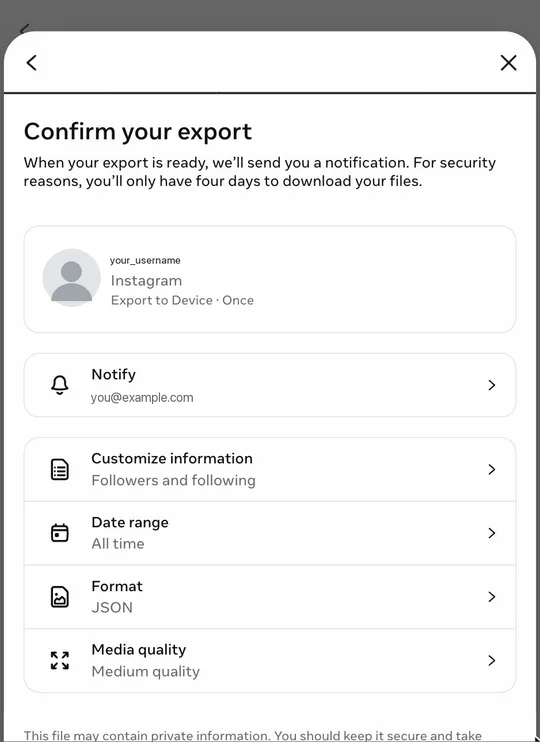
Figure 1: The summary before Start export: Followers and following, All time, JSON. - When Instagram notifies you that the file is ready, download the ZIP. You don't need to unzip it.
- Open the Instagram unfollowers tracker and choose the ZIP. The Don't follow you back tab lists every account you follow that isn't on your followers list.
Each screen of the export is explained in how to download your Instagram followers and following as JSON, and the step-by-step tutorial covers iPhone, Android and desktop. If that list is all you're after, the Instagram "not following back" checker opens straight on it.
The tool reads the ZIP in your browser tab. The file's contents aren't uploaded to our server or sent to Instagram. You can test that yourself in a current browser: load the page, turn on airplane mode, then choose the file. You can also try it first with the sample data on the homepage.
What to weigh:
- The export isn't instant. A followers-only export is often ready within minutes to a few hours, but Instagram's Help Center says it can take up to 30 days.
- One export is a snapshot. It shows who doesn't follow you back, not who unfollowed you. For that, see way 3.
- The tool can't unfollow anyone. You open each profile and decide yourself.
Way 3: Compare two exports over time
This is the only way to get a real list of people who unfollowed you without giving an app your login. The idea is simple: if an account was in your followers list in the first export and isn't in the second one, it left in between.
- Analyze your first export in the Instagram tool with Remember this result on this device checked (it is by default). Only the account names are saved, in your browser's own storage.
- Request a new export a few weeks later, the same way as before.
- Open the new ZIP in the same browser. The results then include an Unfollowed you tab with accounts that were among your followers last time and aren't anymore, and a New followers tab.
Things to know about that list:
- It can't reach back before your first analysis. Instagram's export has no unfollower history, so the first export is always your starting point. If you kept an older ZIP, analyze it first and the newer one second.
- An account that was deactivated, deleted or suspended also drops out of your followers. The tool can't tell that apart from an unfollow, so open the profile before drawing conclusions.
- Accounts are matched by username. Someone who renamed their account appears once under Unfollowed you (old name) and once under New followers (new name).
- The saved history stays in that browser on that device. A private window, cleared site data or another device starts from zero. Delete saved history removes it. If you switch devices, download the followers list as CSV each time and compare the files in a spreadsheet.
One file in the ZIP looks like the answer but isn't: recently_unfollowed_profiles.json lists accounts you unfollowed, not people who unfollowed you. The tool shows it separately as You unfollowed.
Way 4: Apps that log in to your account
App stores are full of "unfollowers" and "followers tracker" apps. Most ask you to log in to Instagram inside the app. They then read your lists on a schedule and show who left since you connected, without you requesting exports.
Upside: it's automatic, with no waiting and no files.
What to weigh before you log in:
- Instagram's rules. Instagram's Terms of Use prohibit accessing or collecting information in an automated way without Instagram's permission, and Instagram has a help article about accounts restricted for data scraping. If anything is restricted, it's your account, not the app's.
- Access to your account. Whoever runs the app can act as you for as long as the session is valid. If the app stores your password or session and is breached, your account is exposed too.
- Same limit as everyone else. These apps also can't show unfollows from before you connected. They build their history from the first scan, just like way 3.
- Cost and data. Many are free to install with paid subscriptions. Check the App Store's App Privacy section or Google Play's Data safety section to see what an app collects and whether it tracks you.
If you've used such an app and want to cut it off: change your Instagram password, log out of unknown sessions under Accounts Center → Password and security → Where you're logged in, and cancel the subscription in your app store. More on this in Are unfollower apps safe? and how to mass unfollow safely.
What Instagram Insights shows
If you have a professional account (creator or business), Insights in your Professional dashboard shows your follower numbers over a period, including how many accounts followed and unfollowed you. It shows counts only, never who. Personal accounts don't have Insights. The exact menu names change from time to time.
That count is still useful: if it shows 12 unfollows this week, you know how many names to expect when you compare two exports.
Common questions
Does Instagram notify you when someone unfollows you?
No. Instagram doesn't send a notification when someone unfollows you, and the other person isn't notified when you unfollow them either.
Can I see who unfollowed me before I started checking?
No, not reliably. Instagram keeps no list of who unfollowed you, and the data export doesn't contain one. Every method, including apps, can only show changes after the first snapshot. An older export you still have can serve as that first snapshot.
Can I see who blocked me on Instagram?
No. Instagram doesn't notify people when they're blocked, and there is no list of who blocked you. The blocked accounts in your data export are accounts you blocked. If a profile suddenly can't be found for you, the person may have blocked you, or the account may have been deactivated or deleted.
Does the other person know if I check?
No. Searching your followers list, requesting your own export and analyzing it on your device are all private. Nobody on your lists is notified.
Why did my follower count drop, but nobody I know unfollowed me?
Counts also fall when Instagram removes fake or spam accounts, or when followers deactivate their accounts. Comparing two exports shows exactly which accounts are gone, so you can see whether they were real people.