How to download your Instagram followers and following as JSON
Instagram doesn't show you who doesn't follow you back, but it lets you download your own followers and following lists. This guide shows how to request only that part of your data as JSON, what you get in the ZIP file, and how to open it in the Instagram tool without giving anyone your password.
You need your Instagram password and a few minutes to set up the request. Then Instagram prepares the file. That can take minutes or much longer, and Meta doesn't promise a time.
Short version: Accounts Center (or Meta Account) → Your information and permissions → Export your information → Create export → your Instagram profile → Export to device. Under Customize information, select only Followers and following, set Date range to All time and Format to JSON, then start the export. Download the ZIP when Instagram notifies you and select it in the Instagram tool.
The settings that matter
If you've done this before, these are the only choices that affect the result:
| Setting | Choose | Why |
|---|---|---|
| Where to export | Export to device | You get a ZIP file you can open in the tool. |
| Information | Only Followers and following (under Connections) | Keeps the file small and contains no messages, photos or search history. |
| Date range | All time | A shorter range can leave out older follows. |
| Format | JSON | Exact follow dates in a structured format. |
| Media quality | Any (Low is fine) | You aren't exporting photos or videos. |
Step 1: Open "Export your information"
The fastest way is the direct link to Your information and permissions in Accounts Center. If you aren't logged in, Instagram asks you to log in first. From there, tap Export your information.
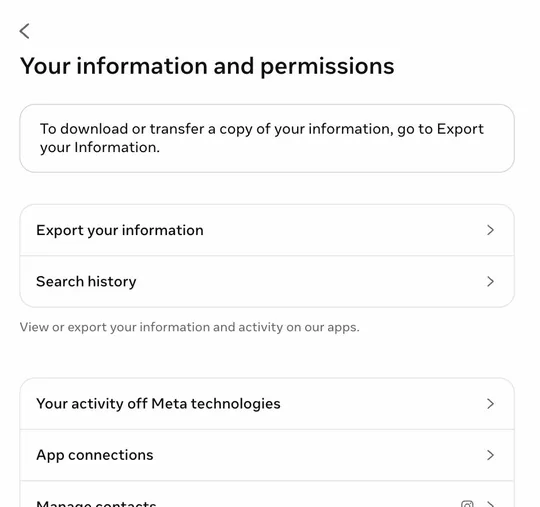
In the Instagram app (iPhone and Android)
- Tap your profile picture in the bottom-right corner.
- Tap the ☰ menu in the top-right corner. This opens Settings and activity.
- Tap Accounts Center. If your account has already been switched over, this entry is called Meta Account.
- Tap Your information and permissions, then Export your information.
If you can't find it, type "export" into the search field at the top of the settings screen.
On a computer (instagram.com)
- Log in at instagram.com.
- Click More (☰, bottom left), then Settings.
- Click Accounts Center (or Meta Account).
- Click Your information and permissions, then Export your information.
If your menus use different names
In April 2026, Meta announced that Accounts Center will be replaced by Meta Account over the following year. Instagram's Help Center already uses the new name, but many accounts still see Accounts Center. The steps after it are the same. Older app versions also use older labels:
| Older label | Current label |
|---|---|
| Download your information | Export your information |
| Download or transfer information | Create export |
| Some of your information | Customize information |
| Download to device | Export to device |
| Create files | Start export |
Guides that tell you to go to "Your activity → Download your information" describe a path that most current app versions no longer have.
Step 2: Request a followers-only export
This is where most mistakes happen. The goal is a small file with only your followers and following, in JSON, covering all time.
- Tap or click Create export.
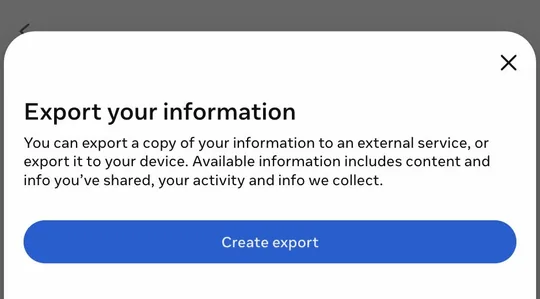
Figure 2: Create export starts a new request. - Select your Instagram profile and tap Next. If a Facebook profile is listed too, don't pick it: you export one profile at a time.
- Choose Export to device. The other option sends your data to an external service instead of giving you a file.
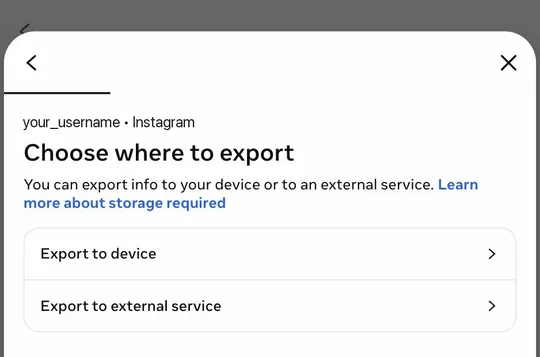
Figure 3: Choose Export to device to get a ZIP file. - Open Customize information. Untick any categories that are already selected, then tick only Followers and following in the Connections section and save.
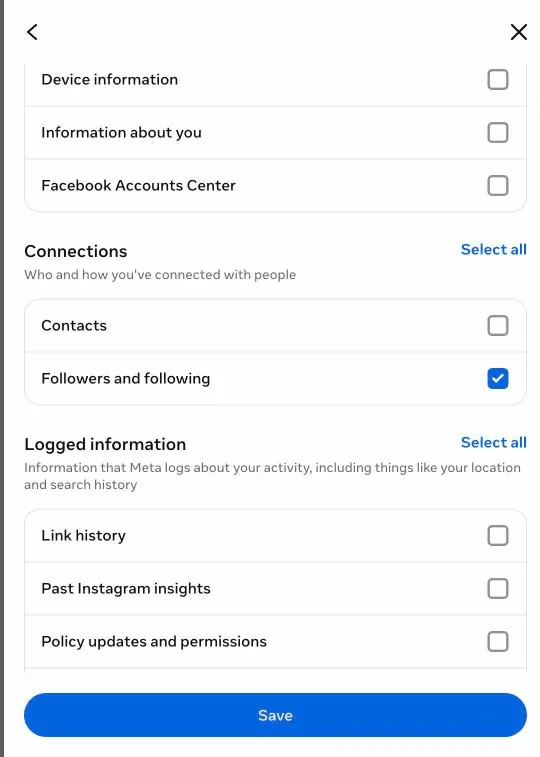
Figure 4: Only Followers and following is ticked, under Connections. - Open Date range and choose All time. It can be preset to a shorter period.
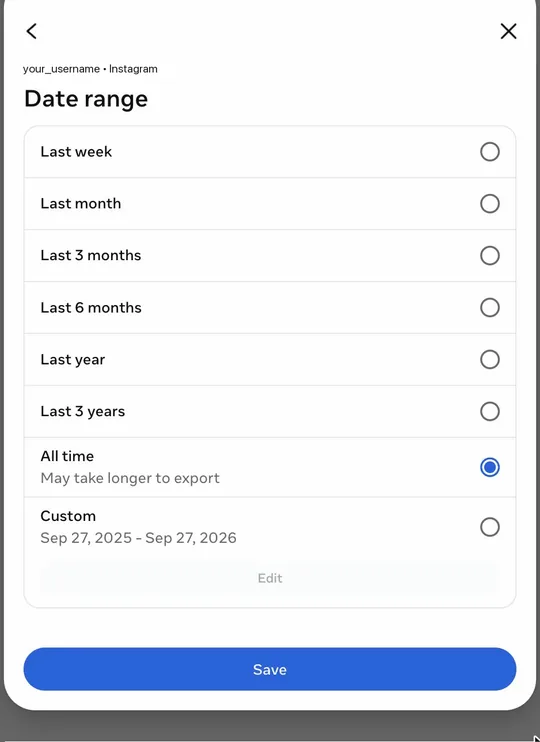
Figure 5: Date range set to All time. - Open Format and choose JSON.
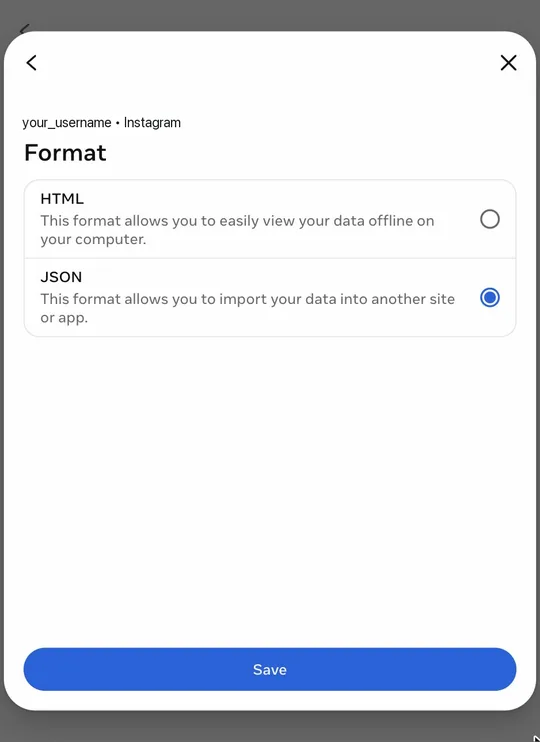
Figure 6: Format set to JSON. - Leave Media quality as it is, or pick the lowest option.
- Check the notification email address. The "your export is ready" email goes there.
- Tap Start export. Instagram may ask for your password and, with two-factor authentication, a login code.
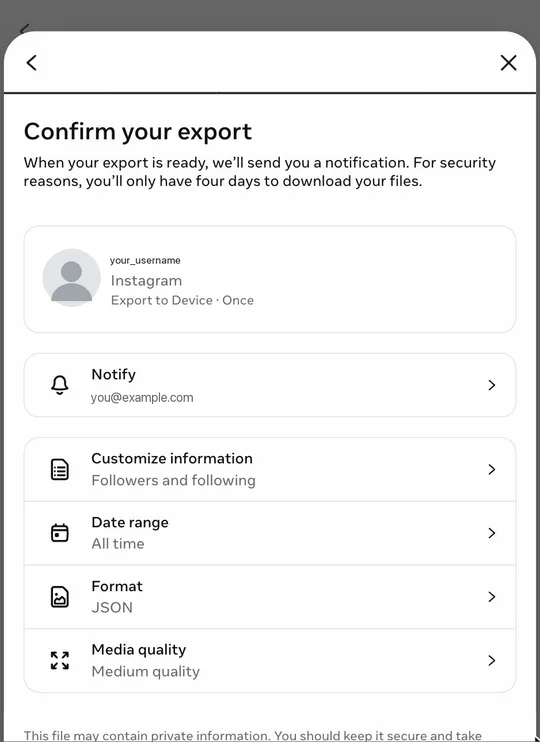
Figure 7: The summary before Start export: Followers and following, All time, JSON.
Labels can differ slightly between app versions and languages. What matters is the result: Followers and following only, All time, JSON.
Don't know your password? If you usually log in through Facebook or a saved login, reset your password first with "Forgot password?" on Instagram's login screen.
Step 3: Wait for Instagram
You don't need to keep the app open after starting the export.
- How long: Meta's Help Center says it can take up to 30 days. A followers-only export is small and often arrives within minutes to a few hours, but there is no guaranteed time.
- How you're notified: by email to the address you chose and by a notification in Instagram.
- Checking the status: open Export your information again. A finished export appears under Available downloads.
There's no way to speed it up. Requesting the same export a second time only makes it harder to tell which file is the current one.
Step 4: Download the ZIP
- Open Export your information and find your export under Available downloads. You can also use the link in the email, but if you're unsure whether an email is really from Instagram, go to Export your information yourself.
- Tap Download. Instagram may ask for your password again.
- Save the ZIP. Its name usually starts with
instagram-, followed by your username and the date.
According to Meta, a finished export stays available for 4 days. After that, you have to create a new one.
Where the file ends up:
- iPhone (Safari): Files app → Browse → iCloud Drive → Downloads. If the Instagram app shows a share sheet instead, choose Save to Files and note the folder.
- Android (Chrome): Chrome menu (⋮) → Downloads, or the Files app under Downloads.
- Windows: your Downloads folder.
- Mac: your Downloads folder. Safari unzips downloads automatically by default, so you may get a folder instead of a ZIP. That still works (see Troubleshooting).
You don't need to unzip anything. On an iPhone, tapping the ZIP in the Files app unpacks it into a folder next to it; the original ZIP stays there.
What's inside the ZIP
This is the content of a real followers-only JSON export requested in September 2026. Everything is in the folder connections/followers_and_following/:
| File | What it contains | Used by the tool |
|---|---|---|
followers_1.json | Accounts that follow you, with the date each follow started | Yes |
following.json | Accounts you follow, with the date you followed them | Yes |
pending_follow_requests.json | Follow requests you sent to private accounts that haven't been accepted | Yes, as an extra list |
blocked_profiles.json | Accounts you blocked | Yes, as an extra list |
restricted_profiles.json | Accounts you restricted | Yes, as an extra list |
following_hashtags.json | Hashtags you follow | No |
profiles_you've_favorited.json | Accounts on your Favorites list | No |
A few details worth knowing:
- Large accounts get several followers files:
followers_1.json,followers_2.jsonand so on. The tool reads and merges all of them. In the export above, just under 10,000 followers still fit intofollowers_1.json, and all seven files together came to about 2.6 MB unpacked. - The followers and following files have usernames and dates, but no display names or profile pictures. Each entry holds a username (or a profile link) and a timestamp.
- Some exports, especially older ones, contain more files, such as
close_friends.jsonorrecently_unfollowed_profiles.json. When they're present, the tool shows them as extra lists. Note that "recently unfollowed" lists accounts you unfollowed, not people who unfollowed you.
JSON or HTML?
Instagram offers both formats. Choose JSON. If you already have an HTML export, you don't have to request a new one just for this tool.
| JSON | HTML | |
|---|---|---|
| Made for | Programs and tools | Reading in a browser |
| Usernames | Yes | Yes, as profile links |
| Follow dates | Exact timestamps | Printed as text in your account's language |
| Works in the tool | Yes (recommended) | Yes |
The tool reads followers_1.html and following.html the same way it reads the JSON files. For HTML, it has to recognize the dates from text such as "Jan 01, 2025". It handles common formats in the site's eight languages; if it can't recognize yours, the lists still work, but without dates, so you can't sort them by date. JSON avoids that guesswork, which is why it's the better choice.
Step 5: Open the ZIP in the tool
- Open the Instagram tool in the browser on the device where the ZIP is saved.
- Tap the upload area and choose the ZIP. On a computer you can also drag it onto the upload area. If your export came as several ZIP files, select all of them together.
- The results appear after a moment.
The file is opened by JavaScript in your browser tab and isn't sent to our server. The tool never asks for your Instagram login. If you want to see what the results look like first, use Try with sample data; it shows made-up accounts.
What you get
- Don't follow you back: accounts you follow that aren't in your followers.
- You don't follow back: people who follow you that you don't follow.
- Mutual, All following and All followers.
- Pending requests, Blocked and Restricted, when those files are in your export and not empty.
Each list has a count, a search field, sorting (newest, oldest, A–Z), a link to each profile on Instagram and a CSV download. Unfollowing is up to you: the tool has no access to your account, so you unfollow people yourself in Instagram.
What one export can and can't tell you
An export is a snapshot of your lists at the moment Instagram created it. It contains no record of who unfollowed you, and the Instagram app doesn't show one either.
So "doesn't follow you back" isn't the same as "unfollowed you". An account can be on that list because it never followed you (brands, artists, accounts you followed first), because it unfollowed you at some point, or because it was deactivated when the export was made.
To see who actually unfollowed you, you need two exports from different dates. With Remember this result on this device checked (it is by default), the tool saves the usernames from your analysis in this browser only. When you open a newer export of the same account in the same browser, it adds two lists: Unfollowed you and New followers since your last analysis.
- The saved lists stay in this browser. Delete saved history removes them.
- A private window, clearing site data, or switching browser or device starts from zero.
- It only covers the time between two exports. An account that was deactivated in between also shows up under Unfollowed you, and someone who changed their username appears as one account gone and one new.
- The tool recognizes your account by the name of the export ZIP (
instagram-yourname-…). If you rename the ZIP or select loose JSON files, it may not find your earlier analysis. Selecting the original ZIP each time is the safest option.
Keep your ZIP after using it. A followers-only export is small, and it's your record of that date.
Troubleshooting
"We couldn't find follower data in your upload."
The ZIP doesn't contain the followers and following files. Usually "Followers and following" wasn't selected, or you picked a different ZIP. Create a new export as described in Step 2.
"This looks like an export from Facebook, but this is the Instagram tool."
You exported your Facebook profile instead of Instagram. Create a new export and select the Instagram profile. If you actually wanted to check Facebook, use the Facebook tool.
"Your export doesn't contain your following list"
One of the two lists is missing, so there is nothing to compare. This happens when you selected only one of the two JSON files instead of the ZIP, or the ZIP was repacked without it. Use the original ZIP, or request a new export with Followers and following selected.
The ZIP "could not be opened"
The download is probably incomplete. Download it again from Available downloads while the 4 days are still running.
The file "could not be read"
This often happens when the ZIP sits in iCloud Drive, Google Drive or a similar folder and isn't fully on the device. Save it to local storage first and try again.
Parts of the followers list seem to be missing
The tool found, for example, followers_1.json and followers_3.json but not followers_2.json. If Instagram gave you several ZIP files, select all of them at once.
The download became a folder (Mac)
Safari unpacks ZIPs after downloading. You don't need to download again: on a computer, drag the whole folder onto the upload area, or select followers_1.json and following.json from inside it. You can also Control-click the folder in Finder, choose Compress and use the new ZIP. To keep ZIPs in future, turn off Open "safe" files after downloading in Safari's General settings.
The download link expired
Exports are available for 4 days. Create a new export; the setup only takes a few minutes.
People who follow you appear under "Don't follow you back"
- Date range: if the export wasn't set to All time, older followers can be missing.
- Timing: anyone who followed you after the export was created isn't in it.
- Unavailable accounts: deactivated or temporarily unavailable accounts can be missing from your followers file.
"Export your information" is missing or greyed out
According to Instagram's Help Center, a profile that is deactivated or scheduled for deletion can't be exported. Reactivate it or cancel the deletion first, and check that you selected your Instagram profile.
You exported everything, including photos and videos
That usually still works: the tool only reads the text files in the ZIP and skips media. But such an export can be several gigabytes, which takes longer to prepare and download, especially on a phone. For checking followers, a new followers-only export is quicker.
Common questions
Does Instagram notify anyone when I download my data?
Instagram notifies only you, by email and in the app, when the file is ready. The people on your lists aren't told, and the tool never connects to Instagram.
Can I do all of this on my phone?
Yes. You can request, download and open the export on an iPhone or Android phone. The ZIP ends up in the Files app (iPhone) or the Downloads folder (Android).
Do I need to unzip the file?
No. Select the ZIP as it is. If it was unpacked already, you can select followers_1.json and following.json from the folder, or, on a computer, drag the whole folder onto the upload area.
Can I download someone else's followers list this way?
No. The export only covers accounts you can log in to. It contains your own followers and following, nobody else's.
How often should I export?
There's no rule. Each new export in the same browser is compared with your last saved analysis, so the interval decides what period the "Unfollowed you" list covers.